/var/www/xnett.org/homelab/ops-center-pwa-mobile-wallboards.md
[HOMELAB]Ops Center as a PWA: an app window for mobile and wallboards
Install Ops Center on supported devices, keep the normal browser interface and use clear offline states instead of stale operational data.
- author:
- Rolf
- date:
- 2026-09-13 15:40
- read:
- ~3 min
Ops Center can now be installed as a Progressive Web App on supported browsers and devices. It opens in its own app window while using the same frontend, backend, authentication and permissions as the normal website.
That is useful for a frequently used operations console, a tablet beside the rack or a dedicated monitoring display. Installation is optional; ordinary browser access continues to work.
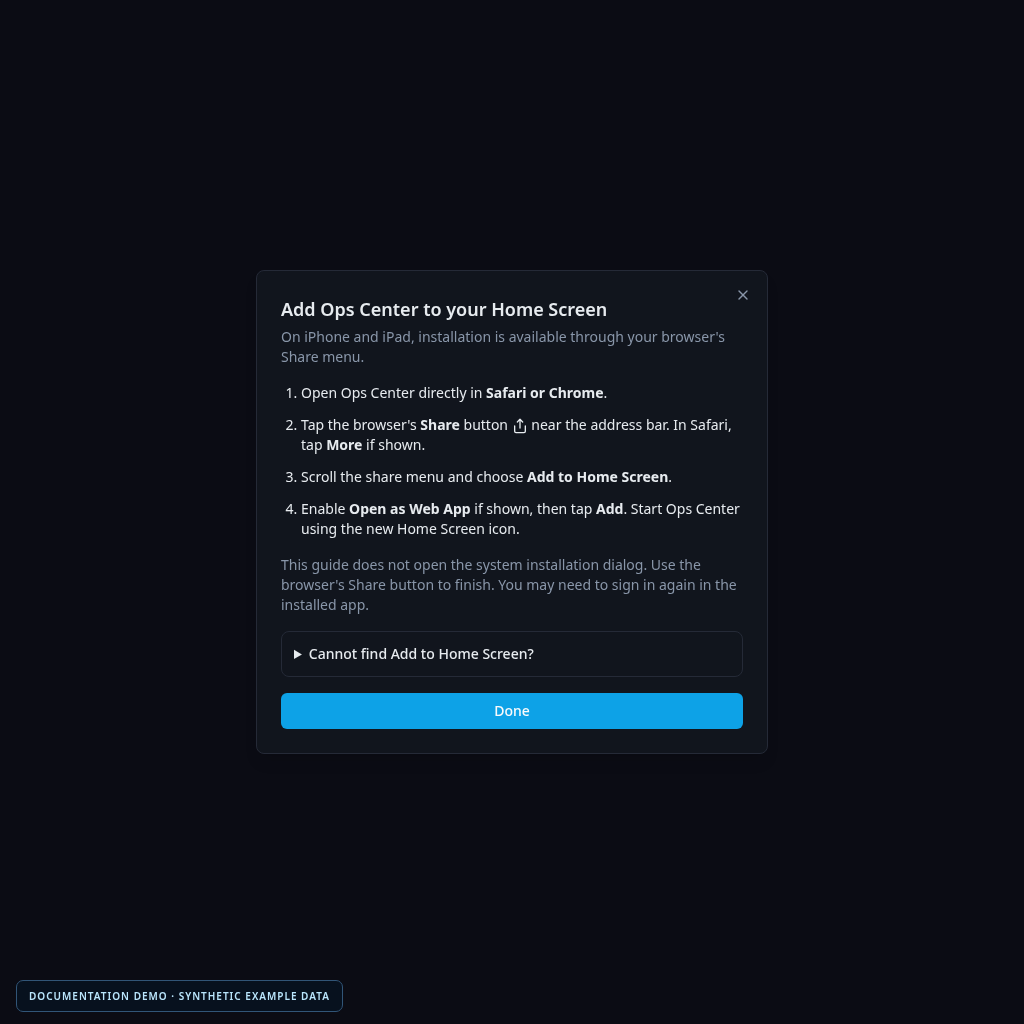
Screenshots use the standard interface with synthetic documentation data.
Install when it fits the device
On supported desktop and Android browsers, use the browser's installation menu or Install Ops Center when offered.
On iPhone or iPad, open the site in Safari and use Share → Add to Home Screen, then Open as Web App if that option is shown. The application includes help for this manual path. Availability and wording depend on the browser, operating system and device policy.
The deployed site needs a valid HTTPS origin. Installing the app does not create a second account, add permissions or provide a route around the normal login.
An operations console needs an honest offline state
Offline support has a different purpose here than in a note-taking app. Old infrastructure values can be misleading if they still look current after connectivity fails.
The PWA caches versioned static assets and public offline content. It does not cache API responses, authentication information, session data, commands or live status. It does not queue operational actions for later replay.
An offline navigation shows an explicit offline page. If the backend becomes unavailable while the interface is open, an overlay stops old on-screen values from being presented as live.
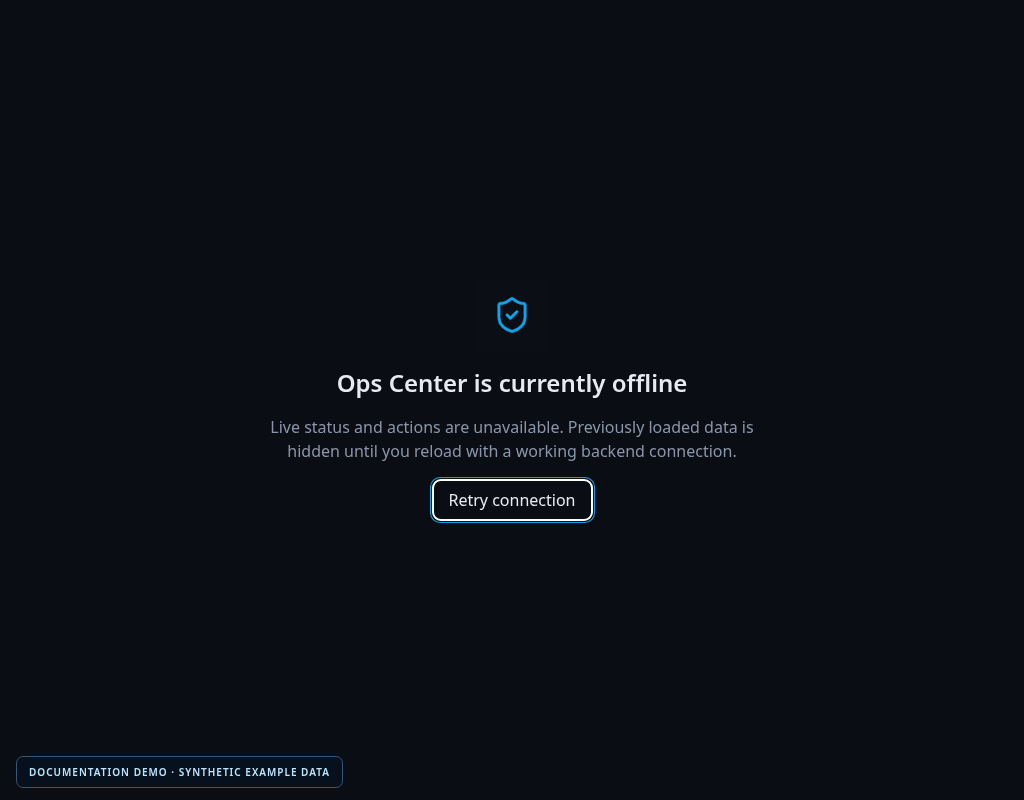
There is no offline infrastructure administration in this release. The app needs a working connection to the backend to inspect current state or submit work.
Updates stay under user control
When a new service worker is available, it waits for the user to choose Reload. It is not activated halfway through an active session without that choice.
Operators also need to preserve the expected caching headers and asset availability during upgrades. A reverse proxy that applies long-lived caching to all HTML or service-worker files can undermine the update flow.
Open sessions and live transports still use the existing application behavior. The installed window is another presentation of the same service, not a separate synchronization system.
Use a wallboard for a focused view
Traffic Map includes a dedicated wallboard suitable for desktop, tablet and installed PWA use. It keeps traffic observations and the authentication banner accessible in a display-oriented view.
A practical setup is to install Ops Center on a monitoring device and open the view that matters for that role. Give the account only the permissions it needs, and verify collection health before treating a quiet display as evidence that everything is quiet.
The wallboard shares the same live data and connectivity requirements as the normal page.
Deploy the matching frontend
This feature requires the built frontend, service worker, manifest and icons to be served together. The documented setup supports deployment at the origin root; arbitrary subpath hosting requires coordinated routing and asset configuration.
Browser tests cover desktop and mobile layouts, install help, offline behavior, controlled updates and live transports. Device emulation does not establish that every physical device and browser version has been tested.
The PWA guide contains deployment details. For what the display actually observes, see Traffic Map.
More from this release
Browse the September feature series, or read the original Ops Center introduction.
# EOF